Add CultureWise to Your Phone
CultureWise runs in your phone's browser, so there's no app store download. Adding it to your home screen puts a CultureWise icon next to your other apps and opens it full screen, with the Fundamentals one tap away. It takes three taps on either iPhone or Android.
Before you start
- Log in at app.culturewise.com on your phone first. Add the icon while you're signed in.
- Use Safari on iPhone or Chrome on Android. Other browsers handle this differently.
iPhone (Safari)
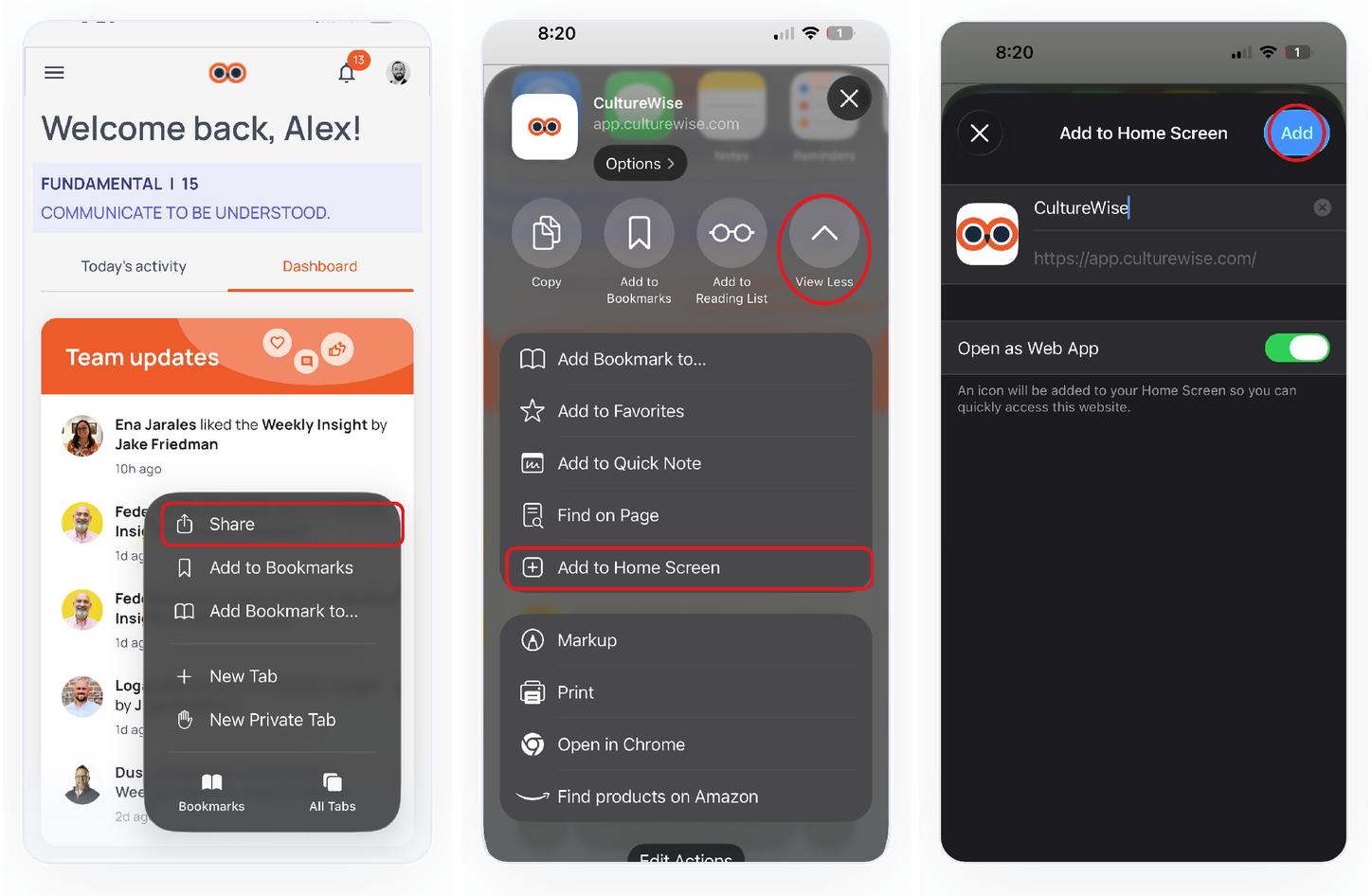
1. Go there, tap Share
In Safari, go to app.culturewise.com and log in. Then tap Share at the bottom of the screen.
2. View More, then Add to Home Screen
On the share sheet, tap View More (the top-right circle) to expand the list, then scroll down and tap Add to Home Screen.
3. Tap Add and you're done
Keep the name CultureWise, leave Open as Web App on, and tap Add. The icon lands on your home screen.
Android (Chrome)
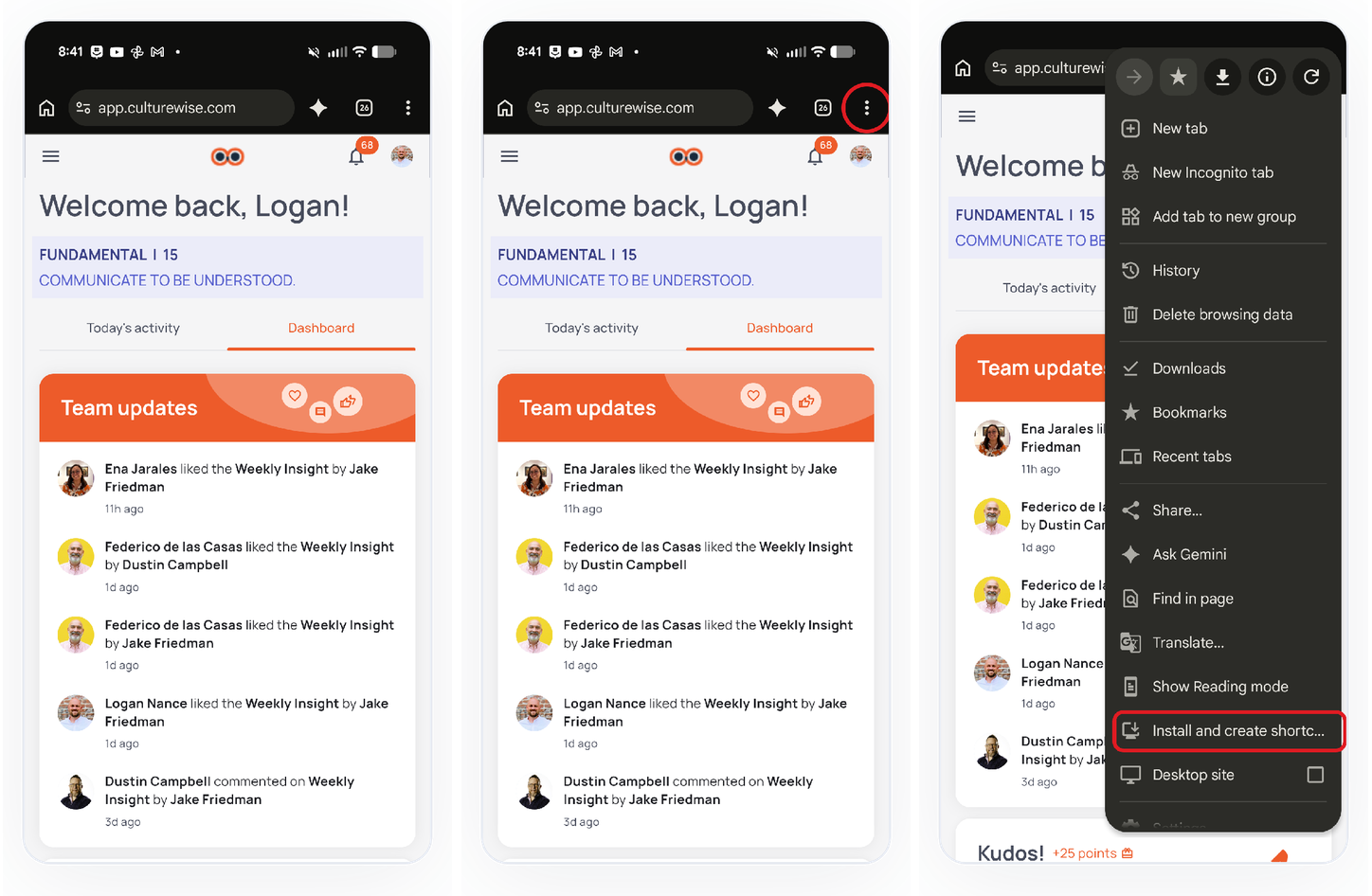
1. Go there, log in
In Chrome, go to app.culturewise.com and log in with your email and password.
2. Open the three-dots menu
Tap the three-dots menu in the top-right corner of Chrome.
3. Install and create shortcut
Scroll the menu and tap Install and create shortcut, then confirm. The CultureWise icon lands on your home screen.
Cautionary notes
- On iPhone this only works in Safari. The Add to Home Screen option doesn't appear in Chrome on iOS.
- Leave Open as Web App switched on. With it off, the icon opens a browser tab instead of a full-screen app.
- Adding the icon doesn't create a second account. It's a shortcut to the same login you already use.
Tips for efficiency
- Drag the icon into your phone's dock or first home screen so the daily activity is always one tap away.
- Add it during rollout, while people are already logging in for the first time.
- Send the printable guide above to anyone setting this up on their own.